Platform Distribution
Part of Turning viewers into returning followers
Designing end screens around the next useful topic
An end screen should take viewers to the next question they are likely to ask, not just the newest upload.
An end screen should send viewers to the next question they are likely to ask, not merely the newest upload. Decide the follow-up before filming the ending, then align the spoken handoff, on-screen wording and interactive destination.
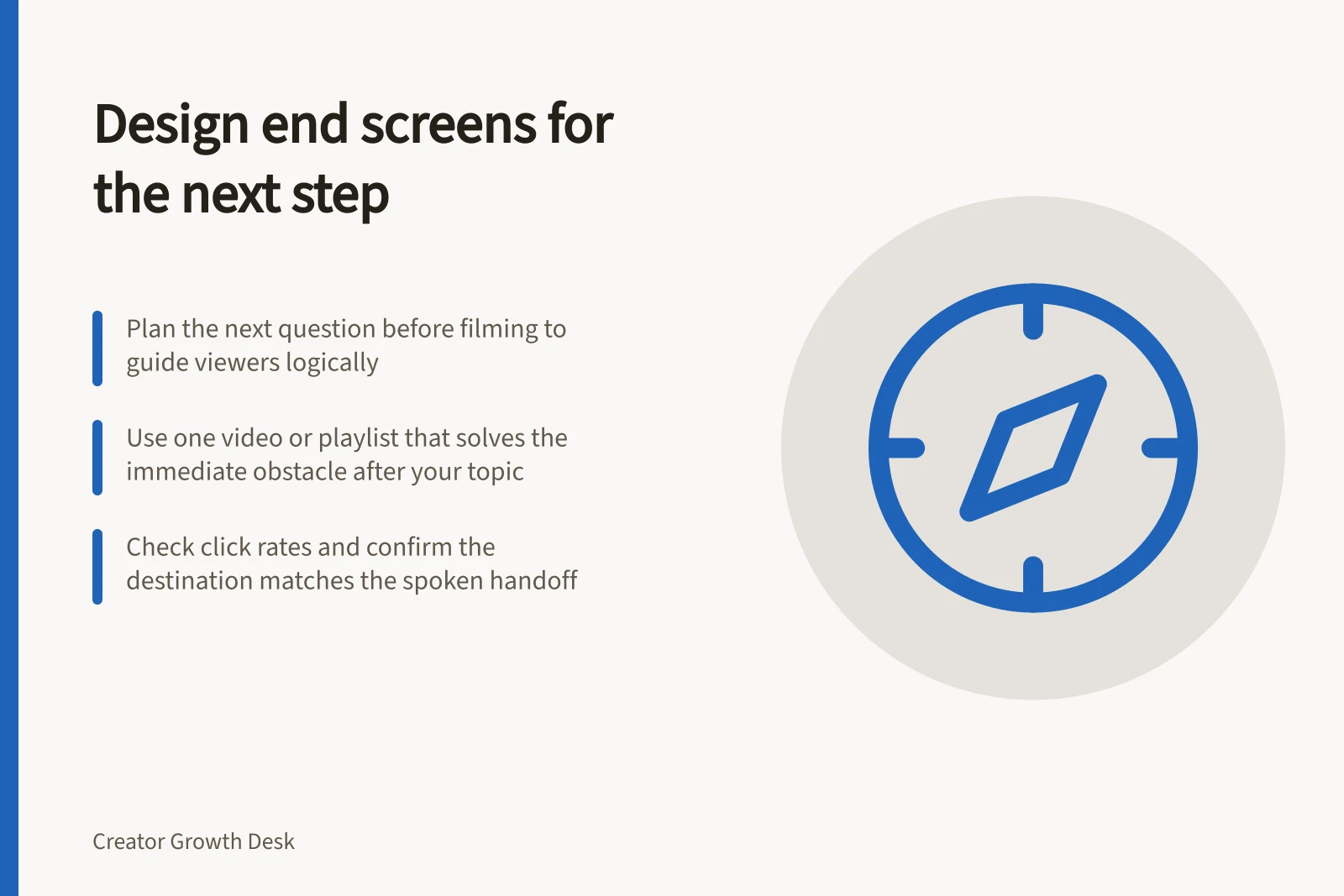
Write down the question your video answers, identify the next obstacle and choose one video or playlist that resolves it. Then make the closing line, screen wording and clickable element point to that same next step.
Designing Effective End Screens: A Step-by-Step Approach
- Identify the core question your video answerse.g., 'How to prevent overproofing in sourdough bread?'
- Determine the next likely obstacle or follow-up questione.g., 'What’s the best way to store dough overnight?'
- Align spoken closing line, on-screen text, and clickable elementExample: 'If your dough keeps overproofing, the fix is right here.'
- Add and preview end screen in YouTube StudioUse Editor > End screen; check mobile and desktop views
Pick one primary destination
Start with what viewers can do with the answer in your video, then ask what obstacle comes next. Choose one related video that addresses it, rather than defaulting to the newest release. A playlist fits when the topics form a genuine sequence.
YouTube can auto-select a best-for-viewer video using viewer data. Treat that as a candidate, then check that it really answers the next question raised by your video.
Say, “If your dough keeps overproofing, the fix is right here”; use on-screen wording that names the fix and point the video element to a video that delivers it. The spoken line, label and destination should promise the same next step.
A five-part history education series is one case where a playlist can hold a genuine sequence. Keep secondary actions subordinate so the next step is not lost among competing choices.
YouTube end screens can include video, playlist, subscribe, channel and, if your channel is eligible, link elements. You can add up to four clickable elements in total, and at least one must be a video or playlist. The video must be at least 25 seconds long; end screens are not available on Shorts.
Analytics reports end-screen element clicks per video. These are YouTube features; another platform may use different tools or omit interactive end screens entirely.
End Screen Elements: What You Can Include on YouTube
- Video (minimum 25 seconds)
- Required for at least one clickable element
- Playlist
- Best when topics form a genuine sequence (e.g., a 5-part history series)
- Subscribe button
- Available to all channels; secondary action only
- Channel link
- Only if channel is eligible (e.g., verified or monetised)
- Custom URL link
- Available via eligibility; not supported on Shorts
Leave room in the edit
YouTube end screens appear during the last 5 to 20 seconds. After upload, open YouTube Studio, select the video and choose Editor > End screen to add and position elements, then preview the result.
Plan a closing shot with deliberate space for the elements, and keep essential text and action clear of the tiles. Launchframe’s End Screen template offers a concrete layout reference: a title, two 16:9 video slots and a round subscribe slot.
Check the end screen on a phone and a desktop view, and do not place essential text behind an interactive tile. The preview helps you check that the elements fit the closing shot.
Keep the next topic clear in the video itself, so viewers understand the handoff even if they do not use the interactive element.
Review the handoff
Open the destination and confirm it delivers what the ending promises. If the recommended video has been renamed or replaced, update the handoff. A promise of “the setup guide” that leads to a general channel page makes the viewer search unnecessarily.
Use the click-rate metric as a diagnostic, not a verdict on the whole video. A low click rate may reflect an irrelevant destination, a weak prompt, a viewer who already has the answer, or a context where the screen was not shown. Compare like videos and inspect the ending itself before deciding what to change.
Review end-screen element clicks per video in Analytics, compare handoff styles and inspect zero-click endings first. Before publishing, click the end-screen element and confirm its destination matches the spoken handoff.
Pre-Publish Checklist for End Screen Effectiveness
- Confirm destination video matches spoken promisee.g., ‘the setup guide’ should lead to a specific tutorial, not a general page
- Verify end screen appears in last 5–20 seconds of videoPlan closing shot with space for elements; avoid clutter
- Check mobile and desktop previewsEnsure essential text isn’t blocked by interactive tiles
- Review click-rate data in YouTube AnalyticsCompare like videos; diagnose low clicks before making changes
- Test the clickable element before publishingClick through to confirm correct destination