
Retention
Part of Community habits that support creator growth
Managing moderation as a creator audience grows
Build a manageable comment moderation routine, use YouTube controls carefully and escalate serious abuse appropriately.
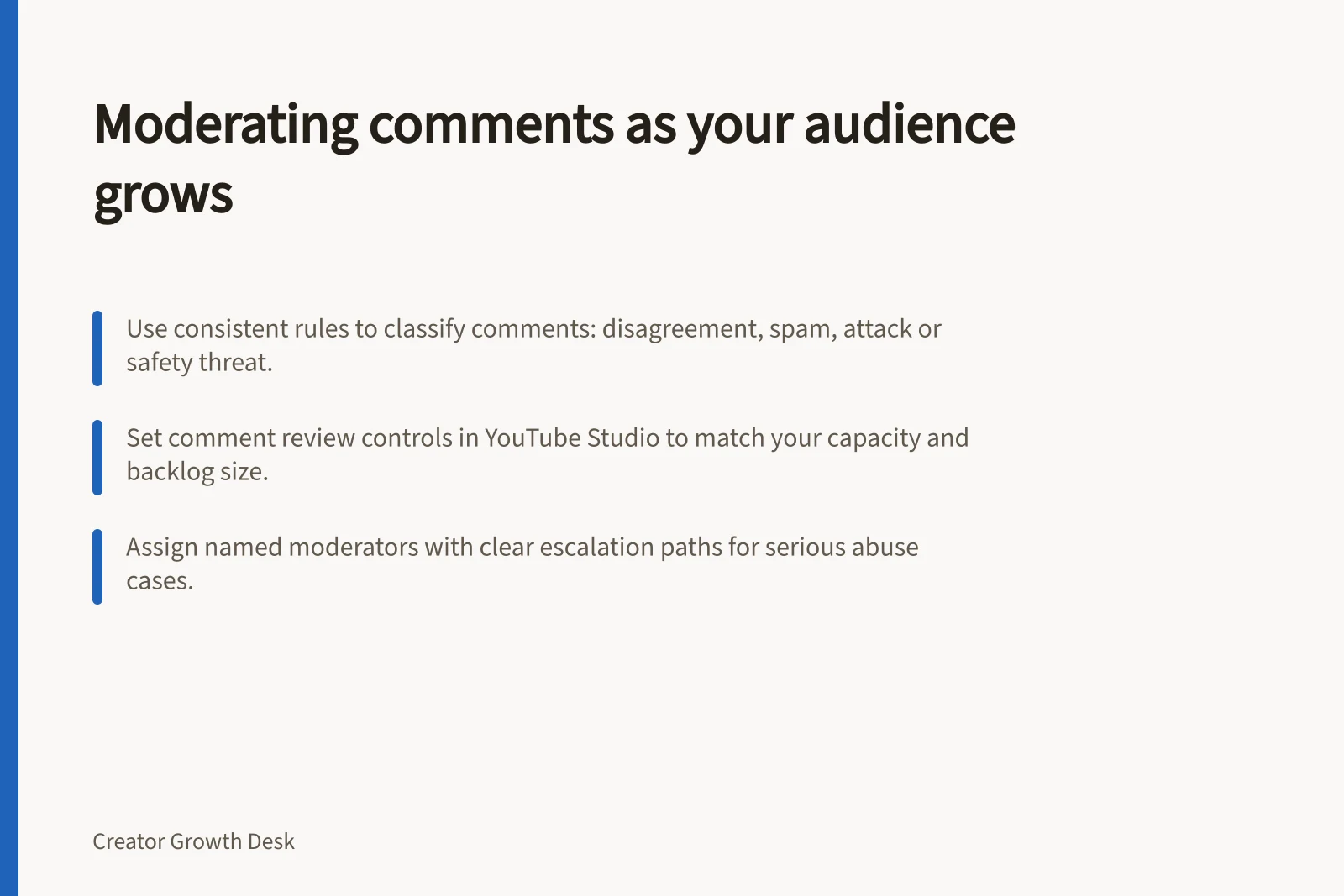
As comments grow, record what needs action and choose a review routine you can maintain. Give helpers the same decision rules, name who owns each queue, and make responsibility for difficult decisions clear.
Turn a broad rule into decisions
Separate a good-faith disagreement, spam, a personal attack and a serious safety concern. A disagreement may need an answer or no action; spam may be removed.
A personal attack may call for removal or an account restriction. A threat or exposure of private information may require evidence collection and a platform report.
Explain the standard in plain language. YouTube channel guidelines can communicate the conversation you welcome, and the standard should apply to people who agree with you and those who do not.
For each item needing action, record its category, the decision and any follow-up. If a case is uncertain, refer it to the person responsible for difficult decisions rather than asking a helper to improvise.
Match controls to review capacity
In YouTube Studio, open Settings > Community to find comment settings. Options named in YouTube’s settings include Allow all comments, Hold potentially inappropriate comments for review, Hold all comments for review and Disable comments.
Open Studio > Comments to review held comments. You can also use Blocked words and blocked links filters, hide users from your channel, or designate approved users, who bypass all filters.
Check each setting’s scope before relying on it, and review blocked words for terms that may catch ordinary language. Choose a control and review interval that match your capacity; holding all comments requires review of every comment, while holding potentially inappropriate comments sends flagged comments for review.
Treat a growing backlog as a signal to change the setting or review routine. Set a queue point that prompts you to reassess the control and interval, and avoid promising immediate approval. Assign a named owner to each queue and pass uncertain or serious cases to the agreed escalation contact.
YouTube Comment Settings vs. Review Capacity
- Allow all comments
- No review needed; suitable only for low-risk content
- Hold potentially inappropriate comments for review
- Moderates flagged content; balances efficiency and safety
- Hold all comments for review
- Requires full manual review of every comment; high effort
- Disable comments
- Eliminates risk but may reduce engagement
Brief a helper
Give a helper examples of the cases above, the actions they can take, and a route for uncertain or serious cases. Review some decisions together and change the brief when a rule produces inconsistent outcomes. Do not leave a volunteer to manage threats or sustained abuse alone.
YouTube Studio has a Moderators control for granting moderation access. Confirm the current permissions before assigning a helper to a queue, and make clear which cases they should refer rather than handle themselves.
Stream distinguishes Admin and Moderator roles. Admins can edit moderation policies, manage system settings and assign roles; Moderators can review flagged messages and apply actions, but cannot edit moderation rules or system-level settings.
Use Stream’s role split as a model for setting boundaries, not as a description of YouTube permissions. Confirm with the platform what permissions a moderation role gives and how the process works before the helper begins, then record the role and process you assign.
Escalate serious abuse
For serious abuse, collect URLs, account details and screenshots before material disappears if they may be needed for a report. Report the material to the platform, including threats or exposure of private information.
If someone is threatened, seek help from the appropriate authorities. Do not leave a helper to manage a serious case alone; pass it to the agreed escalation contact.
Australia’s eSafety Commissioner provides a process for reporting adult cyber abuse. Use that process after reporting the material to the platform, and check the current requirements on the eSafety website before relying on it.
Check and record who owns each review queue and the next step for difficult cases. Also check whether filters repeatedly catch relevant language, and when you will review the settings again.


![Check if packaging reaches your intended audience: This piece is for [person in a situation] who needs [decision] and delivers [answer].; Compare the routes into the video before interpreting a rate.; If the title or image suggests the wrong task, make that element more exact. Checking whether packaging attracts the intended audience](/covers/checking-whether-packaging-attracts-the-intended-audience-640.webp?v=114adaa3)